
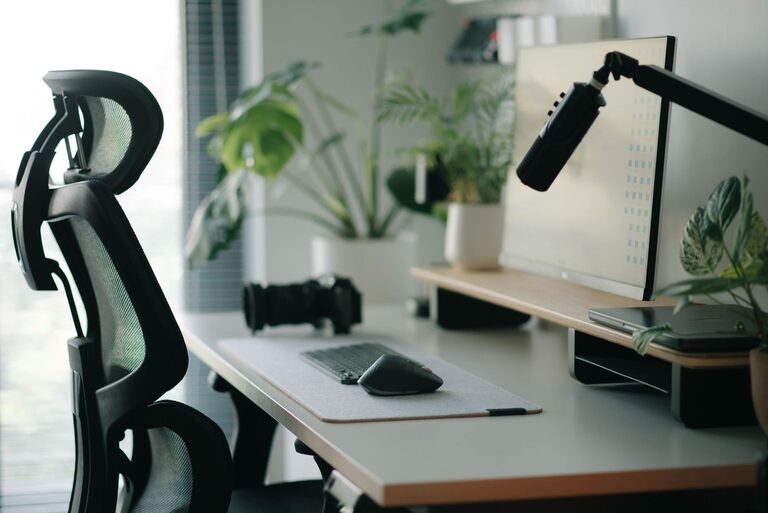
Working from home is easier when your workspace supports comfortable, focused computer use. A few thoughtful adjustments to your chair, desk, monitor, and daily routine can help create a setup that feels natural and reduces unnecessary strain.
You do not need expensive equipment to improve your home office. Start by arranging what you already have, then add accessories only when they solve a specific problem. The goal is to keep your body in a relaxed, balanced position while allowing you to work efficiently.
Start With Your Chair
Your chair is the foundation of your workspace. A good chair should support an upright posture without forcing you to sit rigidly.
Adjust the chair so that:
– Your feet rest flat on the floor or on a footrest.
– Your knees are about level with your hips.
– Your lower back feels supported.
– Your shoulders remain relaxed.
– You can sit close enough to the desk without leaning forward.
If your chair does not have built-in lower back support, a small cushion or rolled towel may provide extra comfort. Keep the support modest so it helps maintain your natural posture rather than pushing you too far forward.
Avoid sitting on the edge of the chair for long periods. Scoot back so the seat supports most of your thighs, while leaving a little space behind your knees.
Set the Desk at a Comfortable Height
A desk should allow your arms to rest naturally while you type or use a mouse. When your desk is too high, your shoulders may lift and your wrists may bend. When it is too low, you may hunch over the keyboard.
With your chair adjusted, aim for:
– Elbows close to your sides.
– Forearms roughly parallel to the floor.
– Wrists in a neutral, relaxed position.
– Shoulders lowered rather than raised.
– Enough room beneath the desk to move your legs.
If the desk is too high, lowering your chair may cause your feet to lose contact with the floor. In that case, use a footrest, sturdy box, or another stable surface to support your feet. If the desk is too low, desk risers may help, provided the setup remains stable.
Keep frequently used items within easy reach. Reaching repeatedly for a phone, notebook, or document can make your work area feel awkward and crowded.
Position Your Monitor Correctly
Monitor placement has a major effect on how you hold your head and neck. Place the screen directly in front of you if you use one monitor. The center of the screen should be close to eye level, so you can view it without constantly looking down or tilting your head upward.
A practical starting point is to position the top edge of the screen at or slightly below eye level. The exact height depends on your screen size, glasses, and personal comfort.
Place the monitor about an arm’s length away, then adjust it as needed. Text should be easy to read without leaning toward the screen. Increase the text size or display scaling instead of moving the monitor extremely close.
If you use two monitors, place the one you use most directly in front of you. Keep the second monitor beside it and angled slightly toward your chair. This arrangement reduces the need to turn your head repeatedly.
A laptop screen is often too low when the keyboard is at a comfortable typing height. For longer work sessions, consider raising the laptop on a stand or a stack of stable books and using a separate keyboard and mouse.
Arrange Your Keyboard and Mouse
Keep your keyboard close enough that your elbows can remain near your body. Your hands should reach the keys without stretching your arms forward or lifting your shoulders.
When typing:
– Keep your wrists straight and relaxed.
– Let your fingers rest lightly on the keys.
– Avoid pressing the keys harder than necessary.
– Keep the keyboard flat or use only a slight tilt.
– Position the mouse beside the keyboard at the same general height.
A mouse that is too far away can encourage you to reach with your shoulder. Move it closer, and consider using keyboard shortcuts for common tasks. If a standard mouse feels uncomfortable, a different shape or size may provide a better fit.
Keep your work surface clear enough for your keyboard and mouse to move freely. Clutter can force your hands and arms into awkward positions.
Improve Lighting and Screen Comfort
Good lighting makes it easier to see your work without leaning forward. Place your desk where natural light is available, but avoid positioning the monitor directly in front of a bright window or with a window immediately behind it.
Use curtains or blinds to control glare. A desk lamp can add light for reading and writing, especially in the evening. Aim the lamp at your documents or work surface rather than directly at the screen.
Adjust your monitor brightness so it matches the room. A screen that is much brighter than its surroundings can feel distracting, while a screen that is too dim may encourage squinting or leaning closer. Clean the screen regularly to remove dust and smudges that affect visibility.
Build Movement Into the Workday
Even a well-arranged workstation can feel uncomfortable if you stay in one position for too long. Change your posture regularly and include short movement breaks throughout the day.
Try these simple habits:
– Stand up while taking a phone call.
– Walk briefly between tasks.
– Alternate between sitting and standing when possible.
– Roll your shoulders gently and relax your hands.
– Look away from the screen regularly.
– Refill your water or organize materials during short breaks.
Use a timer, calendar reminder, or natural task changes to prompt movement. The purpose is not to follow a rigid schedule but to avoid becoming absorbed in work for several hours without changing position.
A standing desk can be useful, but standing all day is not necessary. Alternate between sitting and standing, and keep the screen, keyboard, and mouse arranged comfortably in both positions.
Keep Cables and Accessories Organized
A tidy workspace is easier to use. Secure loose cables so they do not pull on your equipment or create a tripping risk. Store chargers, notebooks, and other supplies where you can reach them without twisting or stretching.
Useful accessories may include:
– A footrest for better leg support.
– A monitor stand or adjustable arm.
– An external keyboard and mouse for laptop use.
– A document holder for frequent reading.
– A small desk lamp with adjustable direction.
– A headset for hands-free calls.
Choose accessories based on your actual needs. The most expensive product is not always the most comfortable or practical option.
Check Your Setup Regularly
Your ideal arrangement may change as your work tasks, equipment, or seating position change. Take a few minutes every week to review your setup.
Ask yourself:
– Am I leaning toward the screen?
– Are my shoulders relaxed while typing?
– Do my feet feel supported?
– Is the monitor easy to read?
– Can I reach common items without stretching?
– Do I change position during the day?
Make one adjustment at a time, then use the setup for a while before deciding whether it helps. Small changes, such as raising a monitor or moving the mouse closer, can make a noticeable difference.
A comfortable home office does not need to be complicated. By supporting your feet, keeping your screen at a practical height, positioning your input devices within easy reach, and taking regular movement breaks, you can create a workspace that encourages comfortable and efficient computer use.