
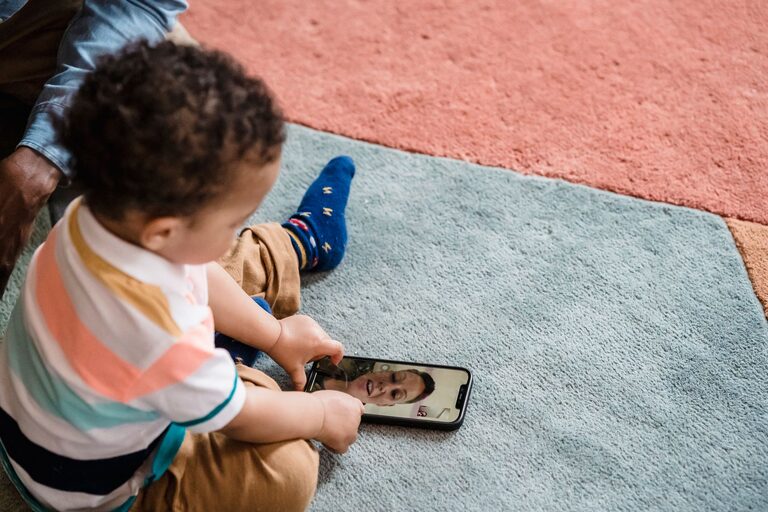
Video calls make it easier for families to stay connected across different cities, time zones, and busy schedules. A quick call can bring people together for a birthday, a weekend chat, homework help, or a shared meal.
Most video call platforms include more than basic audio and video. Features such as captions, screen sharing, group controls, and virtual backgrounds can make conversations more comfortable and engaging. Learning how these tools work can help every family member take part with greater confidence.
Use Group Calls to Bring Everyone Together
Group calling is one of the most useful features for families. Instead of arranging several separate conversations, you can invite multiple relatives to the same call.
Group calls work well for:
– Family celebrations
– Weekly check-ins
– Holiday gatherings
– Storytime with children
– Visits with relatives who live far away
– Planning trips or shared events
Before starting a group call, consider the number of people joining. A smaller group may be better for a relaxed conversation because everyone has more time to speak. For larger gatherings, it can help to choose a host who welcomes guests, explains the plan, and keeps the conversation moving.
If some family members are less familiar with video calls, send the meeting link and simple instructions ahead of time. A short practice call can also make the main event feel less stressful.
Turn On Captions for Easier Conversations
Automatic captions display spoken words as text on the screen. They can be helpful when someone has difficulty hearing, when the connection is not clear, or when several people are speaking in a lively conversation.
Captions may also help people who are learning a language or joining from a noisy location. Some platforms allow participants to adjust the text size, color, or display position.
To make captions more useful:
- Turn them on before the conversation begins.
- Speak clearly and avoid talking over others.
- Pause briefly between speakers.
- Reduce background noise when possible.
- Check whether the captions are available in the preferred language.
Captions are not always perfect, especially when people speak quickly or use names and unusual words. Even so, they can make it easier to follow along.
Use Speaker View and Gallery View
Video platforms commonly offer different ways to display participants. Gallery view shows several people at once, while speaker view makes the person talking appear larger.
Gallery view is useful when:
– Everyone is participating in a group discussion
– Family members want to see one another’s reactions
– Children are showing drawings, toys, or activities
– The call is being used for a virtual celebration
Speaker view may be better when one person is telling a story, giving instructions, or showing something on camera. Switching between views can help participants focus without losing sight of the whole group.
Some platforms also let users pin one or more participants. This can be helpful when someone is speaking softly or when a family member wants to keep a particular person visible.
Share Photos, Videos, and Screens
Screen sharing allows participants to show photos, documents, websites, presentations, or videos during a call. Families can use it to look through vacation pictures, watch a short clip together, or help someone navigate a device.
Common uses include:
– Sharing a digital photo album
– Helping with a school project
– Looking at a recipe while cooking
– Reviewing travel details
– Showing a family calendar
– Teaching someone how to use an app
Before sharing your screen, close private messages, email, and unrelated tabs. Turn off notifications if possible so personal information does not appear during the call.
If you plan to share a video, check whether the platform has an option for sharing computer sound. Without it, other participants may see the video but have trouble hearing it.
Try Reactions, Chat, and Hand Raising
Small interaction tools can make group calls easier and more natural. Reactions let people respond with a thumbs-up, smile, clap, or other symbol without interrupting the speaker.
The chat feature can be useful for:
– Sending a website or recipe
– Sharing an address or phone number
– Asking a question privately
– Posting a reminder
– Helping someone who cannot speak at the moment
A hand-raising button gives participants a polite way to signal that they want to talk. This is especially helpful during larger family calls, where people may accidentally speak at the same time.
For younger children, reactions and simple visual tools can make the call more engaging. You might create a game where everyone chooses an expression to match a story or shows a reaction after a family member shares news.
Make Calls More Accessible
Families often include people with different needs and preferences. Accessibility features can help more relatives participate comfortably.
Useful options may include:
– Captions and transcripts
– Adjustable text size
– Keyboard shortcuts
– Screen reader support
– High contrast settings
– Audio-only participation
– Background noise reduction
– Sign language interpretation, where available
It is also important to consider the physical setup. Encourage participants to position the camera at eye level and use enough light to make their face visible. If someone has difficulty holding a device, a stand or stable surface may help.
Ask family members what makes calls easier for them. A small adjustment, such as speaking more slowly or sending information in the chat, can make a noticeable difference.
Use Backgrounds and Effects Thoughtfully
Virtual backgrounds and visual effects can add fun to family calls. A seasonal background can support a holiday gathering, while a simple background can make a conversation look less distracting.
However, effects can sometimes make faces harder to see or use extra device power. For important conversations, a plain background may be the best choice. If you use a virtual background, choose one that is not too busy and check how it appears before the call.
Families can also use themed backgrounds for special occasions, such as birthdays, game nights, or virtual reunions.
Record Calls Only With Permission
Some video platforms allow hosts to record calls. A recording can help preserve a family celebration or allow someone who missed the event to watch later.
Always ask everyone for permission before recording. Explain where the file will be stored, who will be able to access it, and whether it may be shared. Avoid recording private conversations without clear agreement.
If a recording includes children, be especially careful about where it is saved and who receives it. When the recording is no longer needed, consider deleting it.
Protect Family Privacy
A few simple settings can make video calls more secure and comfortable:
– Use a private meeting link or access code
– Avoid posting call details publicly
– Require participants to wait for the host, when available
– Keep the app updated
– Review microphone and camera permissions
– Lock the meeting after everyone has joined
– Remove unknown participants
– Avoid sharing sensitive information on screen
It is also helpful to decide who will host the call and manage basic settings. A family member who is comfortable with technology can assist others before and during the conversation.
Create a Comfortable Call Routine
The best features are the ones that support a regular habit. Families might schedule a short call every Sunday, a monthly video dinner, or a rotating activity night.
Try keeping calls simple and predictable. For example, each person could share one highlight from the week, show something nearby, or suggest a topic for the next gathering.
With the right features and a little preparation, video calls can feel less like a technical task and more like a natural part of family life. Captions, group views, screen sharing, reactions, and privacy controls all help create conversations that are easier to join and more enjoyable to share.